

Introduction
The Part 4/5 of “Building BSP using Yocto” series discussed steps to create and build custom Linux kernel and image recipes using Yocto Project. This article is the last part of this series and will expose the guide for building and booting the final OS image on the target board (Orange Pi Zero) based on the layer created in previous parts.
Building the final OS image
Before building the image. A quick check that the layer created is included in Bitbake can be done by verifying build/conf/bblayers.conf file.
# POKY_BBLAYERS_CONF_VERSION is increased each time build/conf/bblayers.conf
# changes incompatibly
POKY_BBLAYERS_CONF_VERSION = "2"

BBPATH = "${TOPDIR}"
BBFILES ?= ""

BBLAYERS ?= " \
  /home/aj/Desktop/yocto/poky/meta \
  /home/aj/Desktop/yocto/poky/meta-poky \
  /home/aj/Desktop/yocto/poky/meta-yocto-bsp \
  /home/aj/Desktop/yocto/poky/meta-orangepi-zero \
"
The build can simply be launched using the Bitbake command specifying the custom image “core-image-orangepi” (created in previous parts):
bitbake core-image-orangepi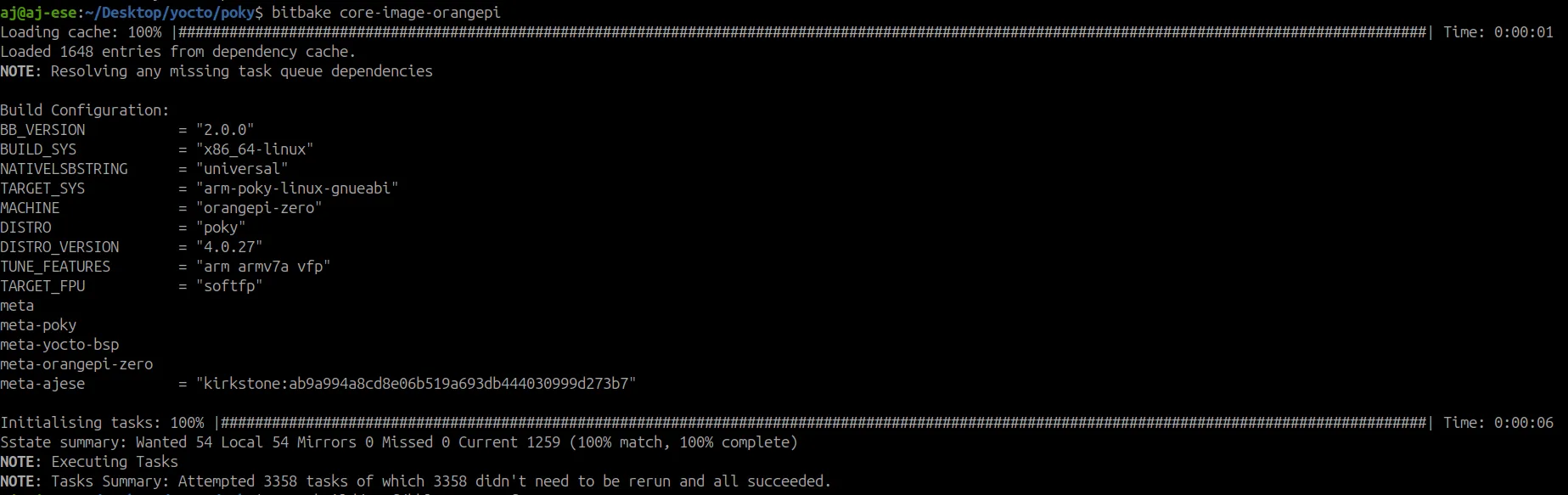
The output and image files can be found in “poky/build/tmp/deploy/images/orangepi-zero/“:
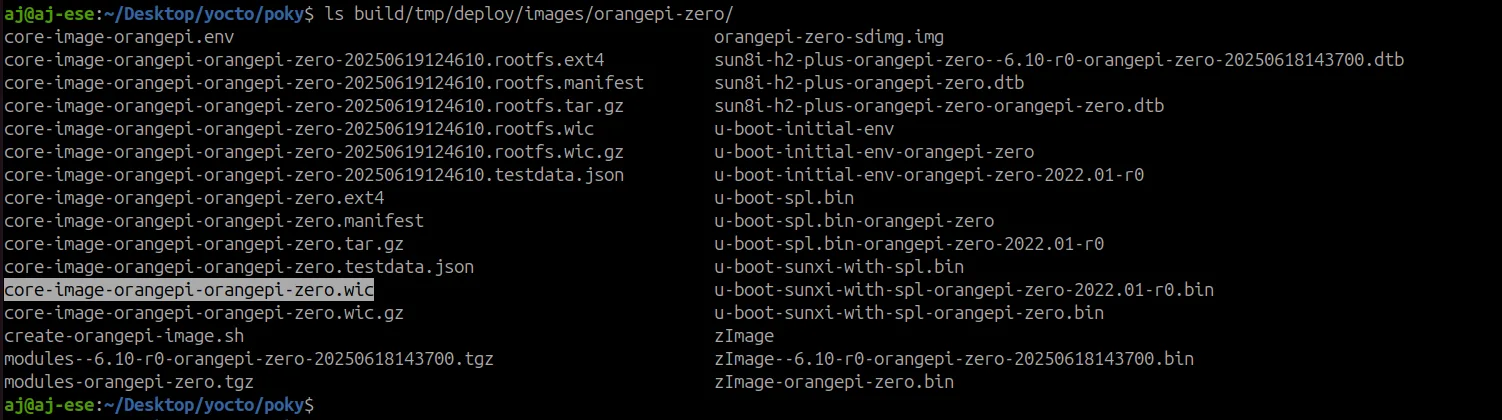
The images/orangepi-zero/ folder contains all generated files and components of the image. The files that can be flashed to dscard are core-image-orangepi-orangepi-zero-20250619124610.rootfs.wic or core-image-orangepi-orangepi-zero.wic.
Flashing and booting the final OS image on SD card
The image can now be flashed on an SD card using the command:
sudo dd if=core-image-orangepi-orangepi-zero.wic of=/dev/sdb bs=4M status=progressThe SD card can then be inserted on the Orange Pi Zero board to boot the system.
The boot process will start by u-boot that will need to find kernel image, the device tree binary, and the RootFS. Those components can be provided using following commands:
=> setenv bootargs console=ttyS0,115200 root=/dev/mmcblk0p1 rootwait
=> ext4load mmc 0:1 0x46000000 /boot/zImage
=> ext4load mmc 0:1 0x49000000 /boot/sun8i-h2-plus-orangepi-zero.dtb
=> bootz 0x46000000 - 0x49000000
Automating boot commands
U-boot commands discussed earlier to load the kernel image, DTB, and RootFS can be executed automatically in the final image. There are few ways to do so, in this article this will be covered by a defconfig fragment.
The steps to implement boot commands in bitbake build engine are as follow:
- Creating a bootcmd.cfg file in meta-orangepi-zero/recipes-bsp/u-boot/files/
- Setting a CONFIG_BOOTCOMMAND variable in bootcmd.cfg:
CONFIG_BOOTCOMMAND="setenv bootargs console=ttyS0,115200 root=/dev/mmcblk0p1 rootwait; ext4load mmc 0:1 0x46000000 /boot/zImage; ext4load mmc 0:1 0x49000000 /boot/sun8i-h2-plus-orangepi-zero.dtb; bootz 0x46000000 - 0x49000000" - Editting u-boot_%.bbappend file and add the snippet bellow:
#Automating boot commands
SRC_URI += "file://bootcmd.cfg"

UBOOT_CONFIG_FRAGMENT += "bootcmd.cfg"

do_configure:append() {
    bbnote "Appending bootcmd.cfg to U-Boot defconfig"
}
The build can be cleaned and launched again using below commands:
bitbake core-image-orangepi -c clean
bitbake core-image-orangepi
After the build is completed the final image can then be flashed using same steps seen earlier. The system should now boot automatically without user intervention.
Using Systemd Init System
The init system generated in the final image is SysVinit by default. Other Init systems can be installed if needed such as Systemd which is more modern.
Installing Systemd in the OS image can be done by editing:
- core-image-orangepi
- local.conf
#core-image-orangepi
IMAGE_INSTALL:append = " systemd systemd-analyze systemd-serialgetty systemd-conf systemd-extra-utils"
#local.conf
DISTRO_FEATURES:append = " systemd"
INIT_MANAGER = "systemd"
DISTRO_FEATURES:remove = " sysvinit"



Leave a Reply